
From March 2021 Azure is deprecating the Container Setting in Azure Web Apps, which changes you to use the new Development Center. This look very nice, but there is a change that is going to force you to have weaker security. This change is to have the Admin Credentials enabled, but there is something you can do to be secure.
Before this change, the best practice method was to turn Admin Credentials off in your Azure Container Registry(ACR). This is because the user is a single user, so you can’t tell different peoples interactions while using this one account, and it also has as it says in the name, admin rights meaning it can do anything.
To make this secure, you would disable the Admin Credentials and then anything trying to connect to the repository would have a Service Principle set up or a role added with the correct access. In this post I describe some of these where you can set up the ACR credentials in the App Settings, so the Azure Web App has access to pull the image. This is using Terraform, but it has the basic idea as well.
Use Terraform to connect ACR with Azure Web App
Now when you create a new Azure Web App or go to an existing one you will be presented with an error like this:
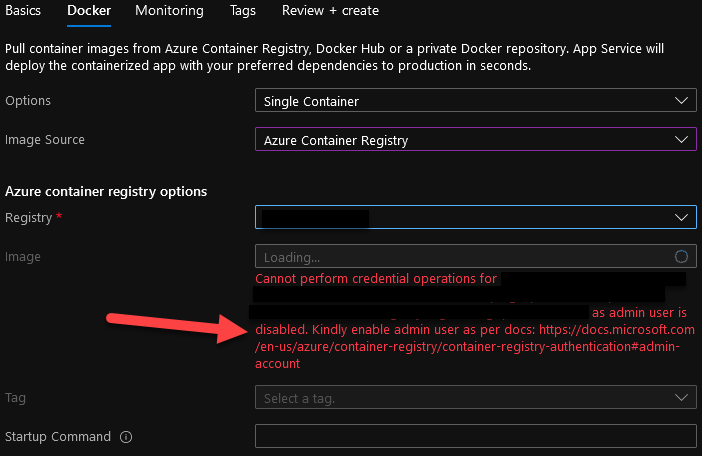
This is now the message you get telling you to turn on the Admin Credentials, but what makes it confusing is on the documentation they point you to says:
“The admin account is designed for a single user to access the registry, mainly for testing purposes. “
ref: https://docs.microsoft.com/en-us/azure/container-registry/container-registry-authentication#admin-account
However, it seems we need to play by their conflicting rules, so we need to work with this and make it more secure.
Turning on this setting can be insecure, but what we can do is rotate the keys. As you can tell from the UI you don’t need to enter these credentials as the authentication is handled behind the scenes.
Therefore, we can regenerate the passwords without affecting the connection between the ACR and the Resource. This is not perfect, but it does mean if anyone get your password or uses it, then it will be expired very quickly if you want at least.
To do this we can use the ACR and the Azure CLI. With the CLI you can use the ACR commands to trigger a password regeneration.
az acr credential renew -n MyRegistry --password-name password
az acr credential renew -n MyRegistry --password-name password2
We can then schedule this and tie it to the ACR by using the ACR Tasks. These can run ACR commands and be put on a repeating timer to trigger when you wish.
ref: https://docs.microsoft.com/en-us/cli/azure/acr/task?view=azure-cli-latest#az_acr_task_create
unfortunalty the ‘acr’ doesn’t contain the ‘Credential’ command and if you run the ‘az’ cli command it says you need to login.
You can put the commands into a Dockerfile and run the commands using the Azure CLI image, but this seems overkill. I would suggest using alternatives to run the commands, like setting up an automated Azure DevOps pipeline to run the commands in the CLI task.
 PR Code